You already know how a virtual tabletop works. This page is just where things are in Foundry and the extras our table uses. Join at game.greyhawktales.com. Use Chrome or Edge, and press F5 or otherwise refresh the browser once if something looks stale.
Same idea, different name
| In Fantasy Grounds | In Foundry |
|---|---|
| Campaign | World (ours is Stunning Greyhawk Tales) |
| Ruleset | Game system (D&D Fifth Edition, 2024 rules) |
| Extension | Module |
| Adventure or book module | Compendium (a library pack in the sidebar) |
| Character sheet | Actor sheet: press C, or double-click your token |
| Story entries | Journal (book tab in the right sidebar) |
| Images and maps | Scenes, shown on the board |
| Combat tracker | Combat tracker (crossed-swords tab) |
| Hot keys | Hotbar at the bottom: keys 1 to 0 |
| Effects | Active effects: they show on the token and in the panel at the top right |
The screen
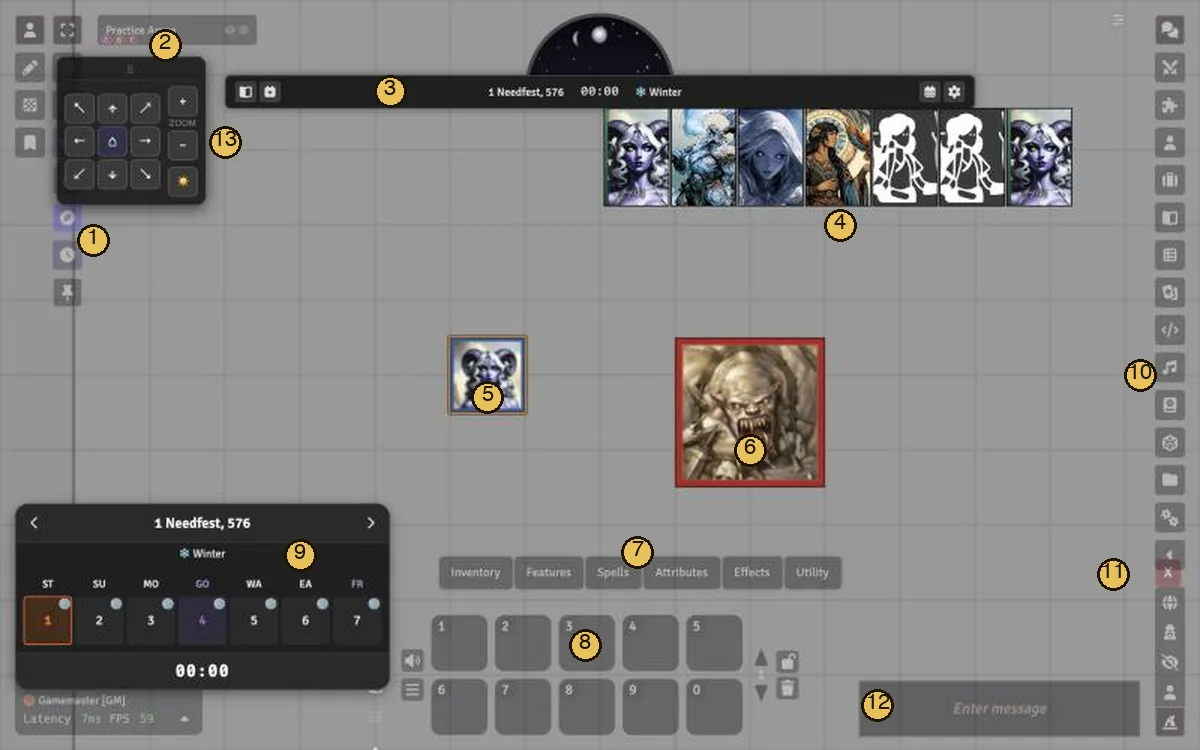
- Token tools (left toolbar): select, target, ruler, clear targets, the Clue Board.
- Scene name: where you are.
- Date bar (Calendaria): the day, the time and the season. Its buttons open the calendar.
- Party HUD: the party’s portraits and HP. Drag it by the small handle at its top-left.
- Your token. Click it to select it.
- A target. The red frame shows it’s targeted.
- Token Action HUD: your attacks, spells, items and checks. Hover a group to open it, then click to use.
- Hotbar: keys 1 to 0.
- Month calendar (Calendaria): close it with its × if it’s in the way.
- Sidebar tabs: chat, combat, actors, journal and more. Click a tab to open it; click again to fold it away.
- X-card (the red X).
- Chat box.
- Pan pad: arrows and zoom buttons, if you’d rather click than drag. Its toggle is in the token tools.
Everything floating can be dragged out of the way, and it stays where you leave it.
Moving around
| To | Do |
|---|---|
| Pan the map | Right-click and drag, or the arrow keys |
| Zoom | Mouse wheel |
| Move your token | Drag it, or W A S D |
| Measure | Drag your token (it shows the distance), or press R for the ruler. Hover Distance(a module I installed) shows how far away a token is when you hover over it. |
| Point something out | Hold the left button on the map for a second (a ping) |
| Sketch a quick path | Hold Q and draw (Quickdraw). It fades on its own. |
Rolling and fighting
-
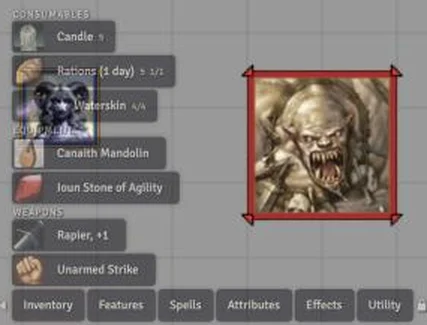
Select your token, then click an attack or spell in the Token Action HUD (above) or on your sheet.
-
A roll dialog opens. Advantage, Normal and Disadvantage are the buttons at the bottom. Situational Bonus takes extra dice, such as
1d4for Guidance.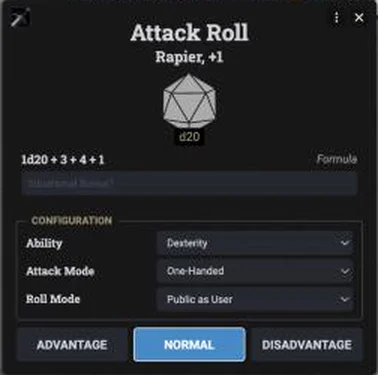
-
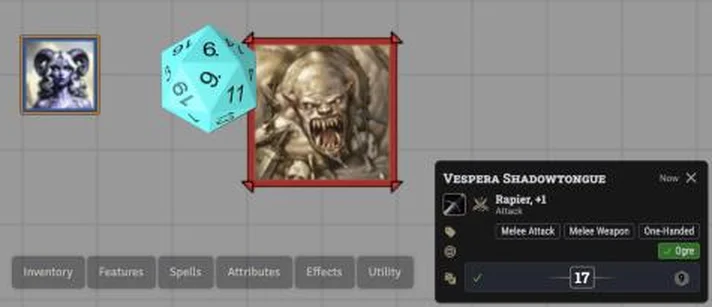
Target first. Hover over an enemy and press T (or hold Alt and click). Many conditions apply advantage or disadvantage for you, but only if the target is set. Alt+C clears your targets.
-
Area spells: place the template and everyone inside is targeted for you. Big creatures (Huge or larger) in a small cone or a thin line can be missed due to a bug: target them by hand.
-
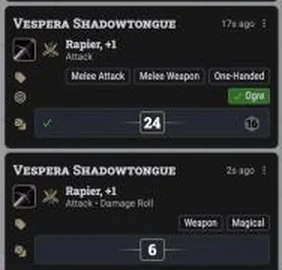
Damage: roll it from the chat card (the burst icon; the sword icon rolls the attack). The GM applies it from the card’s damage tray.
-
Saving throws come up as a card in chat. Click your save on it.
-
Automation: We can automate more of this, but the more we automate, the more likely it is that something goes wrong that we have to fix.
Our table’s extras
| What | How |
|---|---|
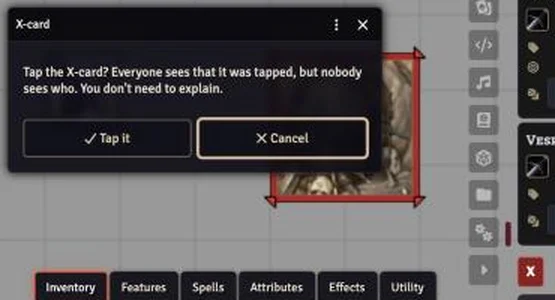
| X-card | The red X by the chat. Tap it and everyone sees that it was tapped, but nobody sees who. No explanation needed. |
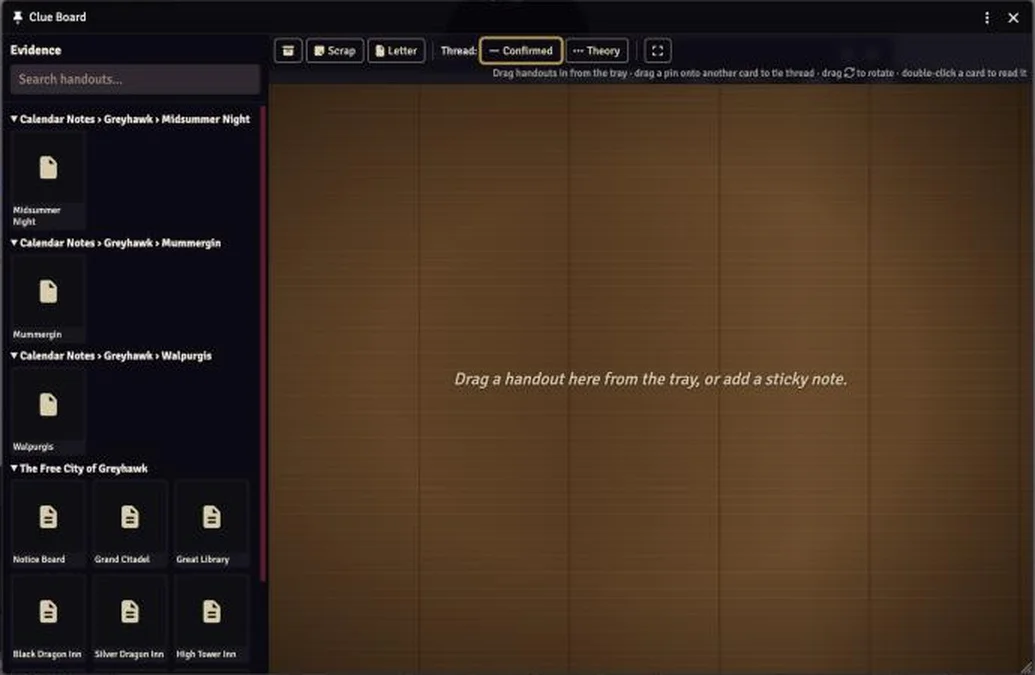
| Clue Board | The pin icon in the token tools. A shared corkboard: pin handouts from the tray, add notes, and run string between clues. |
| Chat filter | The buttons above the chat: All, Rolls, Talk, Whispers. Only changes your own screen. |
| Emotes | Shift+V (Emojify module) |
| Unpause | Press Space, or click the Game Paused banner. Anyone can unpause once the GM is online; only the GM pauses. |
| Search everything | Shift+Space (Spotlight): actors, journals, spells, settings |
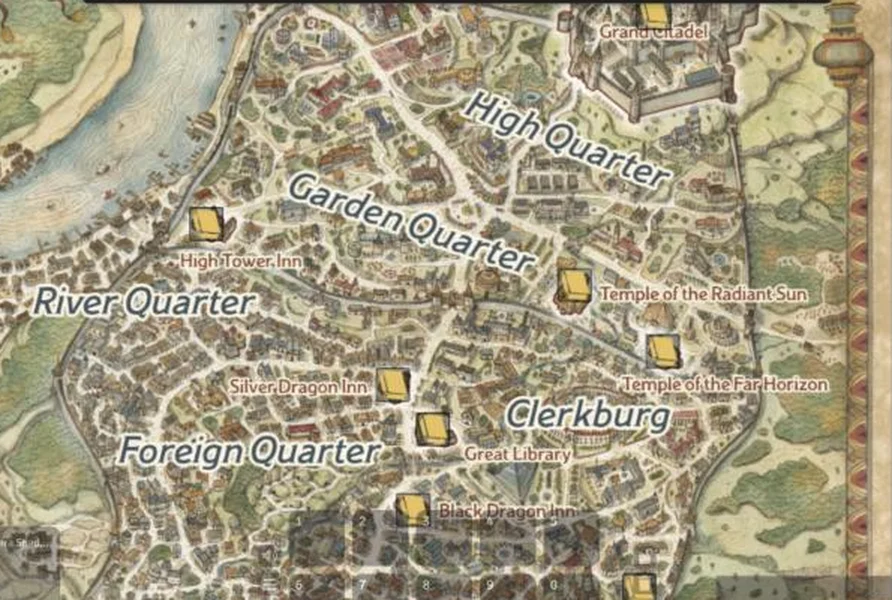
| The city | Between sessions, Foundry opens on The Free City of Greyhawk map. Gold pins open notes on the city’s best-known places, and the seal on the title scroll is the Notice Board for the next session. |
| Rests | From your sheet. Our house rules for Exhaustion, Stress and Resilience run themselves; see the House Rules page. |
Popping things out
Like Fantasy Grounds’ floating windows, but with two levels.
| To | Do |
|---|---|
| Float a sidebar tab (chat, combat, journal…) | Right-click its icon in the sidebar. It opens as its own window inside Foundry that you can drag anywhere, so you can keep chat and combat open side by side. |
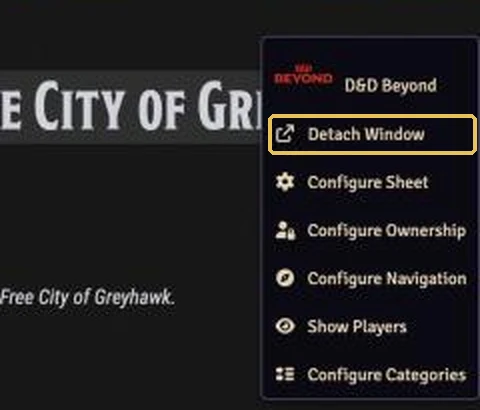
| Move a window out of the browser (onto a second monitor) | Click the ⋮ at the right of the window’s title bar and choose Detach Window. It becomes a separate browser window. To bring it back, use ⋮ → Re-attach Window, or just close it. |
| Keep one chat message open | Right-click the message and choose Pop Out Message. |
If Detach Window does nothing, your browser is blocking pop-ups: allow them for game.greyhawktales.com.
If something goes wrong
- Something looks stale or broken: press F5.
- A window is stuck: press Esc, or close it with its ×.
- Can’t find your character: press C, or open the actors tab.
- Lost on the map: the GM can pull everyone to a spot with a ping.